 Қазақ
Қазақ
 Azərbaycan
 Čeština
 English
 Español
 Français
 Ελληνικά
 हिन्दी
 Indonesia
 Italiano
 Português
 Русский (др. страны)
 Русский (Россия)
 Türkçe
 Українська
 العربية
 简体中文
简体中文
 繁體中文
繁體中文
 日本語
日本語
 한국어
한국어
Different Phone Number in Messenger
Before authorization, make sure that the exact phone number you want to use in NumBuster is active in the selected messenger. You can check this in the messenger settings: Settings—Account.
If a different phone number is used, first change it in the messenger and then try logging in again.
Authorization Error
If you previously used the Delete Account feature and confirmed the deletion of the phone number page, logging in is no longer possible—the page has been deleted.
To restore access, contact our support team.
Problems With Authorization via Telegram
- Tap the interactive button to call the bot.
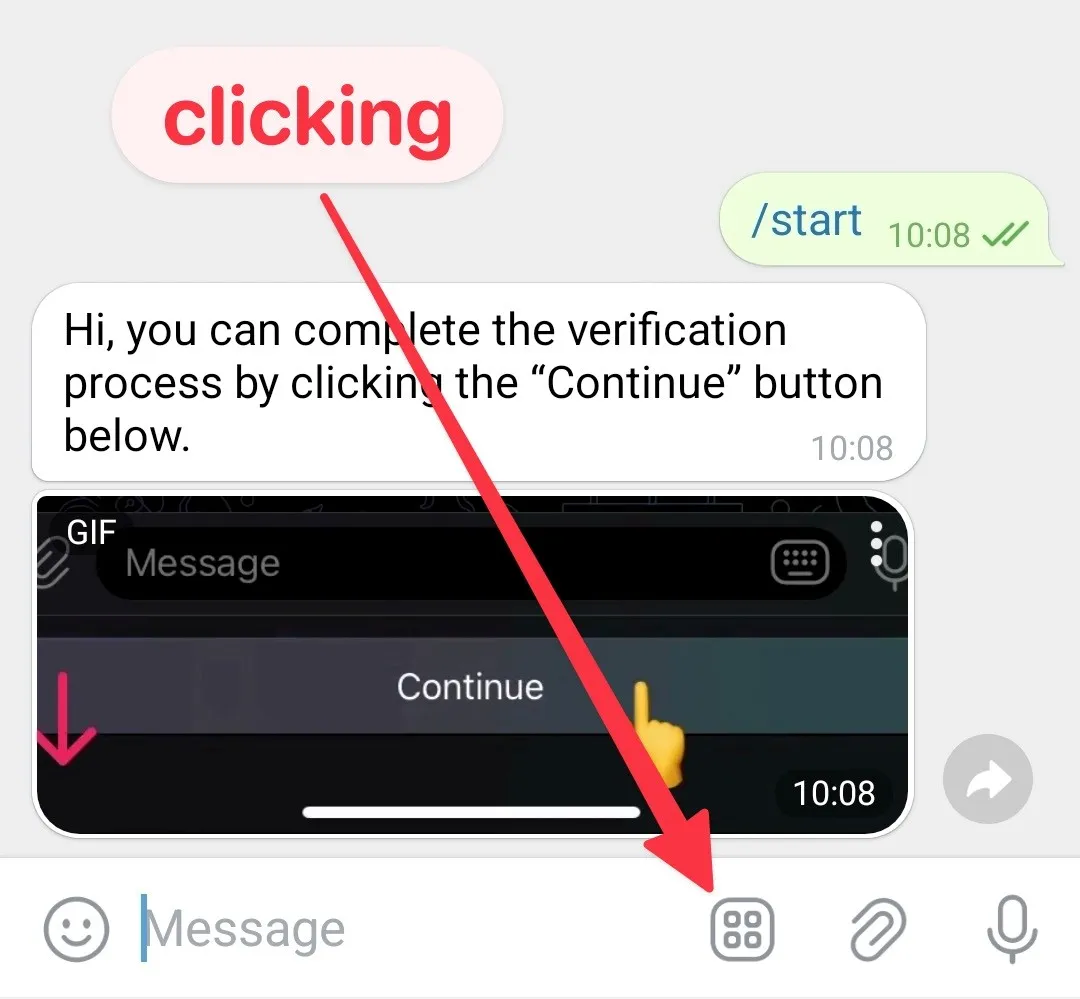
- Tap Continue in the chat that opens.
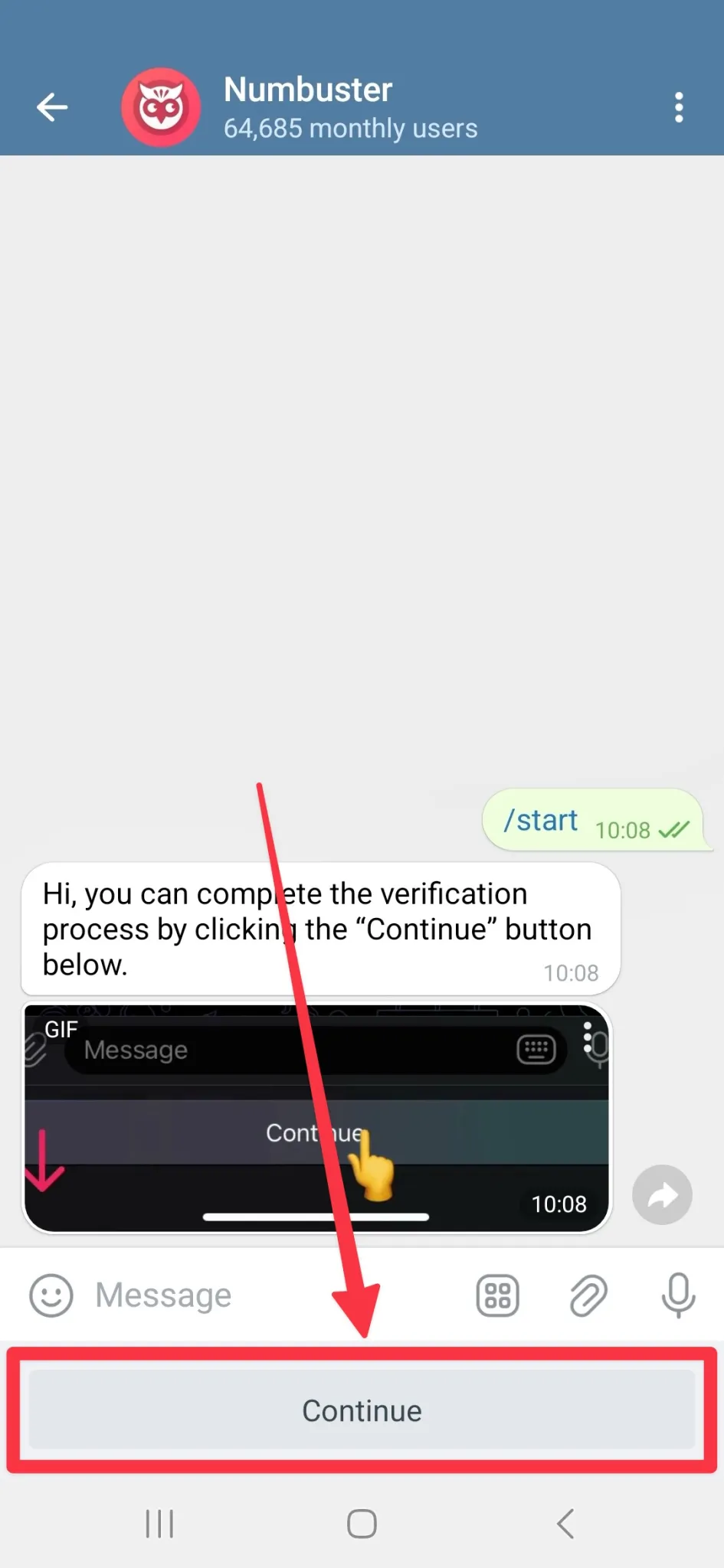
- After receiving the code from the bot, return to the browser—authorization will occur automatically.
If the confirmation code does not arrive, contact our support team.
Selected Messenger Is Not Installed
To complete authorization, ensure that the selected messenger is installed on your device:
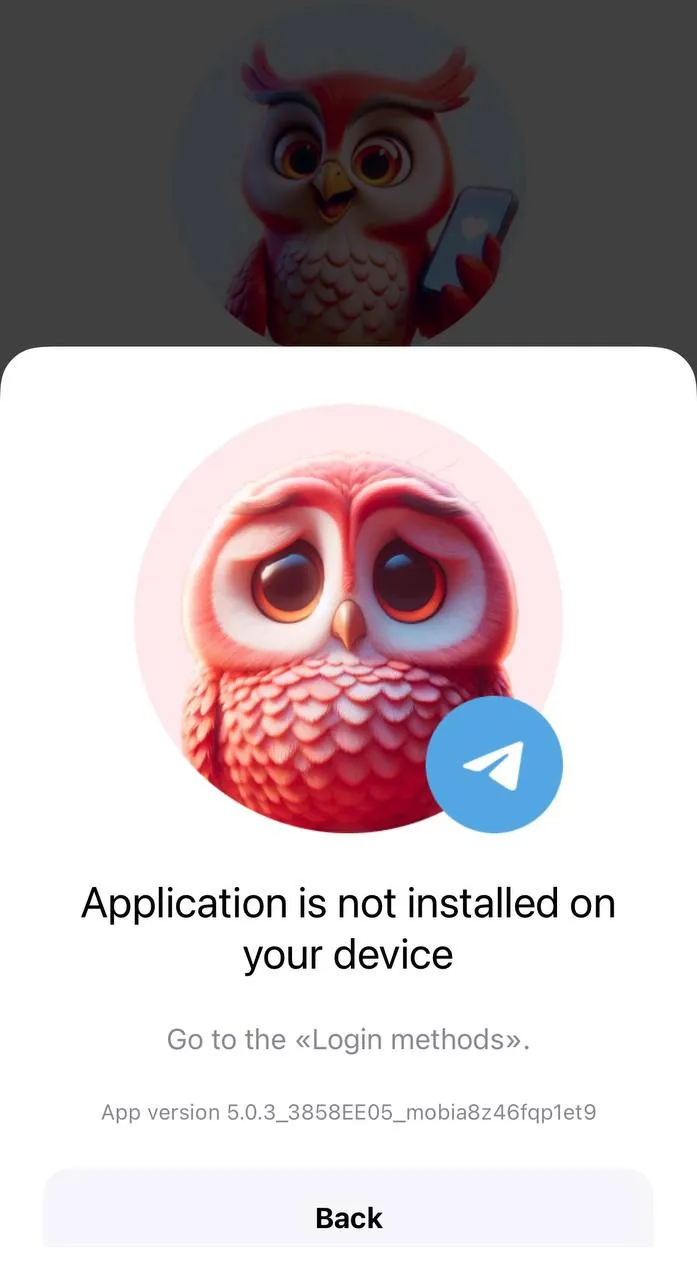
After installation, authorize the required phone number in the selected messenger and try logging in to NumBuster again.
Unable to Authorize via SMS
Authorization in NumBuster is only available via supported messengers: WhatsApp, Viber, or Telegram.
The use of SMS or calls for login is unavailable—this is done to ensure security and protect user data.
 Функциялар


 Tariffs
 Анықтама